Does Luna Controller Work with Nintendo Switch?
Connecting a Luna Controller to Your Nintendo Switch: A Step-By-Step Guide
With the wide range of gaming consoles available today, it’s no surprise that players often find themselves juggling multiple controllers or seeking ways to optimize their gaming setups. The Nintendo Switch, in particular, has been one of the most popular consoles, thanks to its hybrid nature, allowing players to enjoy both handheld and docked gameplay. However, while the Switch’s default controllers (Joy-Cons and Pro Controllers) are great, they might not always be ideal for everyone. That’s where third-party controllers, like the Luna controller, come into play.
What Makes the Luna Controller Special?
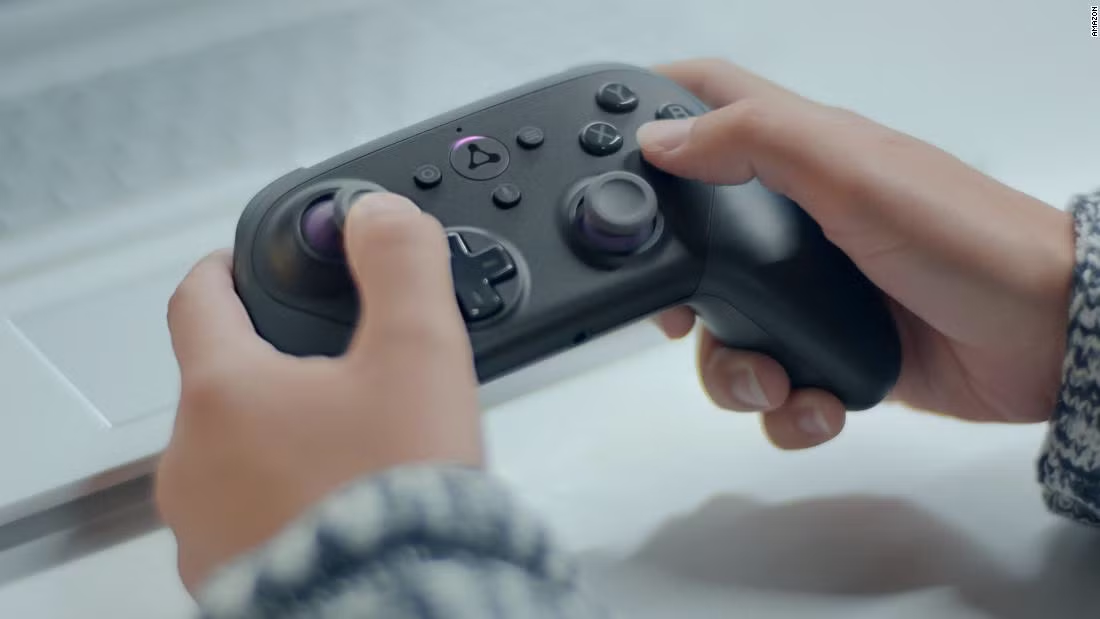
The Luna controller, made by Amazon, was initially designed for use with Amazon’s cloud gaming service, Amazon Luna. What makes the Luna controller stand out is its versatility and seamless integration with cloud gaming platforms. It’s a Bluetooth controller, which means it can be paired with a variety of devices, including PCs, tablets, and mobile phones.
What many players don’t realize is that you can also use the Luna controller with a Nintendo Switch—though with the help of a Bluetooth adapter. This can offer a more comfortable and unique gaming experience, especially if you prefer the feel of the Luna controller over the Nintendo Switch’s standard controllers.
Understanding Bluetooth Technology and Adapters
To connect a non-Switch controller like the Luna to your Nintendo Switch, you’ll need a Bluetooth adapter. But what exactly is a Bluetooth adapter, and why is it necessary?
A Bluetooth adapter is a device that allows Bluetooth-enabled controllers or other devices to connect wirelessly to a console or computer that might not have native Bluetooth support for that particular device. For the Nintendo Switch, this means that without an adapter, you’re limited to only using Nintendo’s official controllers or third-party controllers that are specifically designed for the Switch.
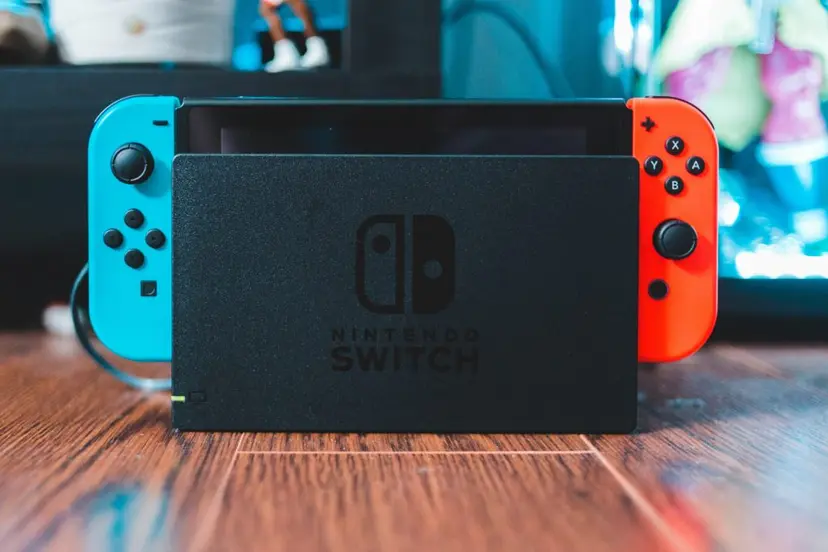
The Bluetooth adapter plugs into the USB port on your Nintendo Switch dock, enabling it to connect with any Bluetooth-enabled device, such as the Luna controller. It works by acting as a bridge between your Switch and the controller, allowing communication through Bluetooth.
For example, if you want to connect headphones, a different Bluetooth controller, or even a keyboard to your Switch, you can use a Bluetooth adapter to make that happen. However, it’s important to note that not all Bluetooth adapters are compatible with the Nintendo Switch. Be sure to choose an adapter designed for use with the Switch for optimal performance.
How to Connect Your Luna Controller to the Nintendo Switch
Now that you understand the need for a Bluetooth adapter, let’s dive into the process of connecting your Luna controller to the Switch. The steps are pretty straightforward, but it’s essential to follow them correctly for a smooth connection. Here’s how to do it:
1. Buy a Bluetooth Adapter
The first step is to get a compatible Bluetooth adapter for your Nintendo Switch. There are many adapters available on the market, but make sure to choose one that explicitly mentions compatibility with the Nintendo Switch. You can find these adapters at electronics stores or online marketplaces.
2. Dock Your Nintendo Switch
Once you have the Bluetooth adapter, dock your Nintendo Switch and plug the adapter into the USB port on the side of the dock. This is where your Switch connects to its charger and docked display.
3. Power on Your Switch
Turn on your Nintendo Switch by pressing the power button. Make sure the console is fully booted up and ready to go.
4. Activate the Bluetooth Adapter
Most Bluetooth adapters have a power button or a switch. Look for the power button on the adapter and turn it on. Once powered up, the adapter will be ready to pair with your Luna controller.
5. Put Your Luna Controller into Pairing Mode
Now, it’s time to pair your Luna controller with the Switch. To do this, put the controller into Bluetooth pairing mode. You can usually do this by holding down the pairing button on the Luna controller until the LED light starts flashing, indicating that it’s in pairing mode.
6. Pair the Devices
With the adapter on and the Luna controller in pairing mode, the two devices should automatically find each other. Once they connect, the LED on the Luna controller will stop flashing and remain steady, indicating that the connection is successful.
At this point, your Luna controller should be ready to use with your Nintendo Switch. You can start controlling your Switch and enjoying games with your new setup.
Bonus Tip: Handheld Mode
If you want to use your Luna controller while playing in handheld mode (i.e., not docked), you’ll need a special USB-C to USB-A cable that allows you to connect your Bluetooth adapter directly to the Switch in handheld mode. This isn’t required for all setups, but it’s an option if you prefer to game on the go with a full-sized controller.
Troubleshooting: What to Do If the Connection Isn’t Working
Sometimes things don’t go as smoothly as planned, and your Luna controller might not connect to the Nintendo Switch right away. Here are some troubleshooting tips to help you figure out what’s going wrong:
1. Check the Bluetooth Adapter
The first thing to check is whether the Bluetooth adapter is functioning properly. Try connecting a different Bluetooth device, like a set of Bluetooth headphones, to your Switch using the same adapter. If the headphones work, then the problem is likely with your Luna controller, and you’ll need to troubleshoot it.
If the headphones don’t connect, then the issue may be with the Bluetooth adapter. Try unplugging the adapter, restarting your Switch, and plugging the adapter back in. If the problem persists, consider trying a different adapter or checking with the manufacturer for assistance.
2. Test the Luna Controller
If the adapter is working fine, then the next step is to check the Luna controller. Try connecting it to a different Bluetooth-enabled device, such as a PC or smartphone, to see if it’s pairing correctly. If it doesn’t connect to any device, you may have a malfunctioning controller and might need to contact Amazon for support or replacement.
3. Reset the Pairing Process
If both the adapter and controller seem fine, but you’re still facing issues, try resetting the pairing process. Turn off both the Switch and the controller, then start from scratch—powering on the Switch, turning on the adapter, and putting the controller back into pairing mode.
4. Update Firmware
Sometimes, connection issues can be resolved with firmware updates. Ensure that your Nintendo Switch and Bluetooth adapter are both running the latest software updates, as outdated software can cause compatibility issues.
Why You Might Prefer the Luna Controller
There are many reasons you might want to use the Luna controller with your Nintendo Switch. For starters, the Luna controller has a unique ergonomic design that may feel more comfortable in your hands compared to the smaller Joy-Cons. It’s also a solid alternative for players who want a more traditional controller layout, especially for games that require precise input.
Additionally, the Luna controller is built to handle long gaming sessions, making it a great option for anyone who plays for extended periods. Its responsiveness, coupled with the Bluetooth capability, makes it a convenient and flexible option for Switch players.
Final Thoughts: Enhance Your Gaming Experience
Whether you’re looking to streamline your controller collection, optimize your gaming setup, or simply prefer the feel of a third-party controller, connecting a Luna controller to your Nintendo Switch is a great option. By using a Bluetooth adapter, you can easily connect a variety of non-Switch controllers, opening up new possibilities for your gaming experience.
It’s a quick and easy process that can significantly improve your gaming comfort and make your time with the Switch even more enjoyable. So, next time you’re in the mood to play, consider trying out the Luna controller for a fresh gaming experience!

Related Posts
Vibe Coding is Shoot and Forget Coding
Our favorite video games of 2025 so far: Clair Obscur, Blue Prince, and more